

Cancel your subscription
You can cancel your JungleMail 365 subscription from the Subscription tab of your account. The subscription stays active until the end of its billing cycle, and you can withdraw the cancelation until then. Use that time to save what you want to keep: once the account is suspended, your newsletters, templates and results are gone.
Before you begin
Section titled “Before you begin”- You need to be a global administrator, or to have a permission role with Manage Subscription.
- Know what you lose. Once your account is suspended, the links in newsletters you have already sent stop working, their images are no longer shown, and your templates, newsletters and analytics are lost.
- If something isn’t working for you, contact support@enovapoint.com first: EnovaPoint may be able to help.
Cancel the subscription
Section titled “Cancel the subscription”Select your initials at the top right, choose Subscription, and select Cancel subscription at the bottom of the page.
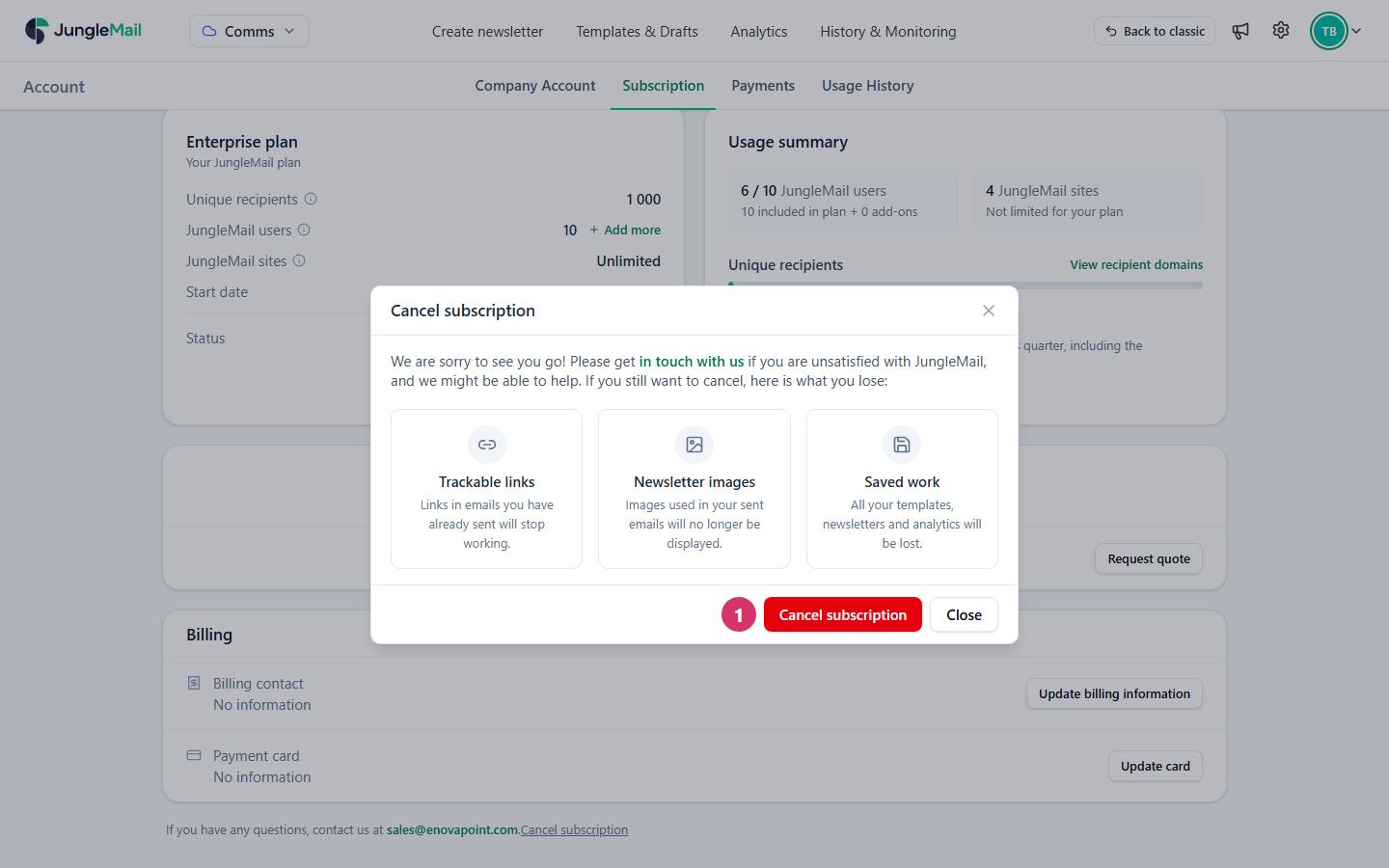
- Read what you lose, then select Cancel subscription.
- In Approve cancelation, check the plan and the date your billing cycle ends, then select Approve cancelation.
JungleMail shows Your subscription has been canceled. Until the end of the billing cycle you can keep using JungleMail. Subscription shows the status Canceled and the date your account will be suspended, after which your data is deleted according to EnovaPoint’s data retention policy.
If Cancel subscription isn’t on the page, your subscription can’t be canceled online: contact sales@enovapoint.com.
Change your mind
Section titled “Change your mind”Until the end of the billing cycle, select Cancel cancelation beside the status on Subscription. JungleMail shows Your cancelation request has been withdrawn., and your subscription continues.
- Cancel as soon as you decide. You keep using JungleMail until the billing cycle ends, and can change your mind until then, so canceling early costs nothing and leaves time to save your work.
- Export the results you need to keep. On Analytics, Export to CSV saves the list of newsletters with their figures, and Generate Word report a summary of one newsletter (Export results to CSV or Word).
- Export the templates you may use again. Export template saves each one as a file: a template from the Rich Text Editor or the HTML Editor as HTML, which other email tools can use, and one from the Drag & Drop Builder as a file JungleMail can import again (Export and import templates).
- Save the newsletters people still refer to as PDF. Once the account is suspended, the links and images in sent newsletters stop working. A PDF keeps the email as it was sent, for example for a policy announcement that staff look up (Export a template or newsletter to PDF).