

Connect Power Automate to JungleMail
Power Automate works with JungleMail 365 through a custom connector, which you create from a file that EnovaPoint publishes for each cloud. Flows can then start when something happens to a newsletter, for example When a newsletter is submitted or When newsletter processing is completed, and use actions such as Get newsletter details, Approve newsletter or Get analytics report. They sign in to JungleMail with an API key that a JungleMail user creates.
Set it up when a site needs more than JungleMail does by itself: approval only for some newsletters (Approval flows in Power Automate), a results email a day after each newsletter, or a SharePoint list updated when a newsletter goes out (Trigger Power Automate flows). You create the connector once per cloud; each flow then needs only a connection.
Before you begin
Section titled “Before you begin”- Flows that use a custom connector need a Power Automate license that includes premium connectors (Types of Power Automate licenses).
- You need to know which cloud your JungleMail runs in (Clouds and app addresses).
- The API key is created in JungleMail on Settings > Automation, by someone who can manage Automation settings, such as a site administrator.
Create the connector
Section titled “Create the connector”-
Download the connector file for your cloud, the one whose address your people sign in to JungleMail at. A file for another cloud reaches another JungleMail, where your API key doesn’t work.
Cloud JungleMail address Connector file US app.junglemail365.comJungleMail-1.0-swagger-us.json EU app-eu.junglemail365.comJungleMail-1.0-swagger-eu.json UK app-uk.junglemail365.comJungleMail-1.0-swagger-uk.json Canada app-ca.junglemail365.comJungleMail-1.0-swagger-ca.json Australia app-au.junglemail365.comJungleMail-1.0-swagger-au.json UAE app-uae.junglemail365.comJungleMail-1.0-swagger-uae.json The connector’s icon is JungleMail365logo.png.
-
In Power Automate, start a new custom connector with Import an OpenAPI file (Create a custom connector from an OpenAPI definition).
-
Name it, for example
JungleMail 365, select the file you downloaded, and select Continue. Keep the name plain: it is what flow makers search for when they add a trigger or an action. -
Upload the icon on the General page, so makers recognize the connector in their flows, then select Create connector. The file defines everything else.

Create an API key
Section titled “Create an API key”In JungleMail, go to Settings > Automation and select Create new API key.
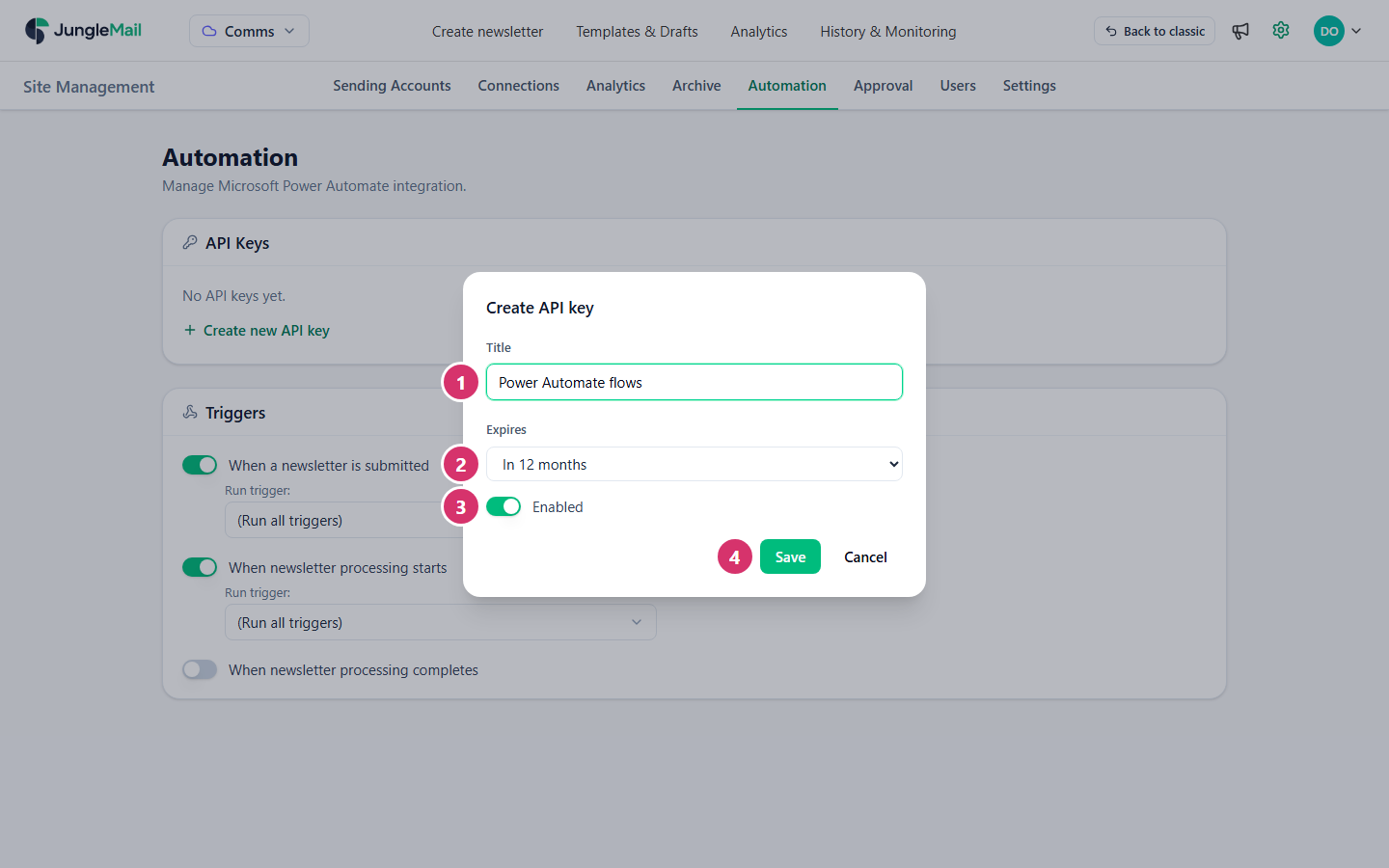
- Enter a Title that says what the key is for, for example
Power Automate flows. With one key per flow, such asNewsletter approval flow, you can turn one off without stopping the others. - Choose when the key Expires: Never, or in 3, 12, 18 or 24 months, as your organization’s policies require.
- Leave Enabled on.
- Select Save.
- In API key created, select Copy. JungleMail shows the key only this once.
The key works on this JungleMail site only, and flows that use it can do only what its creator can do there. They stop working when the key expires or is turned off, or when its creator loses access to the site or their JungleMail license.
Connect a flow
Section titled “Connect a flow”- In a flow, add a trigger or an action of your connector, for example When a newsletter is submitted.
- When Power Automate asks for a connection, paste the API key and create the connection.
- Share the connector with the people who build flows. Nobody else can use a custom connector until you share it with them, for example with a group of flow makers and Can view (Share a custom connector in your organization). Deleting the connector deletes every connection to it, and with them every flow’s link to JungleMail.
- Check your data policies before the first flow. A flow that breaks a Power Platform data policy is suspended (Data policies), and a flow can’t combine connectors from different data groups. Put the JungleMail connector in the group of the connectors its flows use with it, such as Approvals or Office 365 Outlook (Manage data policies).
- Renew a key before it expires. Create the new key, paste it into each flow’s connection, then turn the old key off, so that no newsletter waits on a flow that can’t reach JungleMail.