

Add a Microsoft 365 sending account
With a Microsoft 365 sending account, JungleMail 365 sends newsletters from a mailbox in your organization, so they
arrive as internal mail. Sign in with an account that will stay, and send from a shared mailbox it has Send As on,
such as news@enovapoint.com (Choose a sending account type).
Before you begin
Section titled “Before you begin”- You need the Administrator role on the site, or a role with Manage Sending Accounts. Editors can add their own Microsoft 365 sending accounts if the site allows it (Decide who can use and create sending accounts).
- The account you sign in with needs a mailbox, and Send As on any other mailbox it sends from. Ask for Send As rather than Send on behalf, which shows the newsletter as sent by a person on behalf of the mailbox (Let users send as another mailbox). A new permission can take about an hour to reach Exchange (About shared mailboxes in Microsoft 365).
- Allow pop-ups for JungleMail: Microsoft’s sign-in opens in a new window.
- If your organization doesn’t let people consent to apps themselves, a Microsoft 365 administrator grants consent first (Grant consent to JungleMail).
Add the account
Section titled “Add the account”-
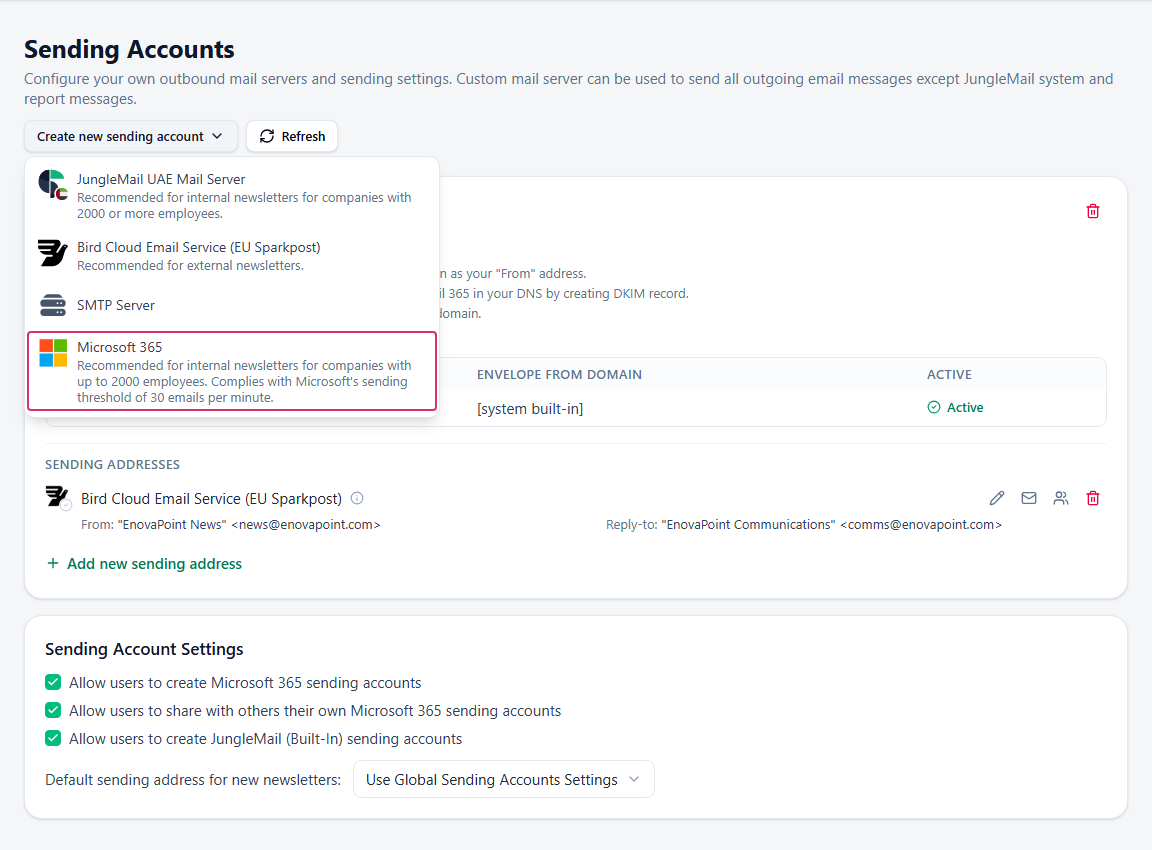
Go to Settings > Sending Accounts, select Create new sending account, then Microsoft 365.
-
Sign in with the account whose mailbox the newsletters will come from, and accept the permissions JungleMail asks for (
User.Read,Mail.Sendandoffline_accessin Microsoft Graph). For a shared mailbox, sign in with the account that has Send As on it, never with the shared mailbox’s own account: Microsoft says to keep sign-in blocked for it. -
In the New sending account dialog:
- From: for a site’s regular newsletters, choose Specified email address with the shared mailbox, such as
"EnovaPoint News" <news@enovapoint.com>, so that readers recognize one sender, whoever wrote the issue. - Reply-to: with a shared mailbox as the From, keep Not specified (reply to sender): replies reach everyone who reads that mailbox.
- Leave Save all newsletter emails to Outlook Sent Items (not recommended) off. When someone reads those copies in Sent Items, JungleMail counts it as an open or a click.
- From: for a site’s regular newsletters, choose Specified email address with the shared mailbox, such as
-
Select Save. JungleMail first sends a test email to the address in Send test email to, and doesn’t create the account if the test can’t be sent. Use a mailbox you can open, to see the test arrive as internal mail.
Editors can now choose the address in the From of their newsletters.
Add another mailbox to the account
Section titled “Add another mailbox to the account”Each Microsoft 365 sending account sends through the mailbox of one account, named in its title. To add an address, select Add mailbox… under the account and sign in again. With the same account, the new address, such as another shared mailbox it has Send As on, joins this sending account, so a password reset means one reauthorization for all of them. With another account, JungleMail adds a separate sending account.
When the sign-in has to be renewed
Section titled “When the sign-in has to be renewed”When the password of the account that signed in is reset, its sessions are revoked or its consent is withdrawn, JungleMail can no longer send from the mailbox. Select Reauthorize Microsoft 365 sending account on the account and sign in again with the same account; another account is refused. Pointing at the button shows who authorized the account: tell your IT team which it is (Newsletters stop sending after a password change).