

Set up the SharePoint connection with a service account
With the Microsoft Entra ID app (service account) type, JungleMail 365 reads SharePoint as one account that you create for it. Everyone who builds newsletters on the JungleMail site gets that account’s access and nothing more, whatever their own SharePoint permissions are. Choose it when you would rather set up and review one account than grant sites one by one: you control everything JungleMail can read through one account’s SharePoint permissions, and nobody else has to authorize anything. For most organizations, per site is the better choice (SharePoint connection: service account or selected sites).
Before you begin
Section titled “Before you begin”- You need a Microsoft Entra role that can grant consent for your organization, such as Cloud Application Administrator, for the consent JungleMail asks for the first time.
- The JungleMail steps are on the site’s Settings > Connections page. Open it yourself if you are a site administrator in JungleMail, or work with one.
Prepare the service account
Section titled “Prepare the service account”- In the Microsoft 365 admin center, create a user for JungleMail, for example
jm365dataconnector@enovapoint.com. Create a new account rather than reuse a person’s or another service’s: whatever it can open, every editor on the JungleMail site can use, and a name that says what it is for keeps it from being removed by mistake. Assign it a Microsoft 365 license; it doesn’t need a JungleMail license. - Give the account access to the sites and lists that newsletters draw on, for example by adding it to the Visitors
group of
https://enovapoint.sharepoint.com/sites/intranet. Read access is enough for recipients and content. An archive list also needs permission to add items, and a subscriber list permission to manage it: give those on the list itself, so that the rest of the site stays read-only for the account.
Set up the connection
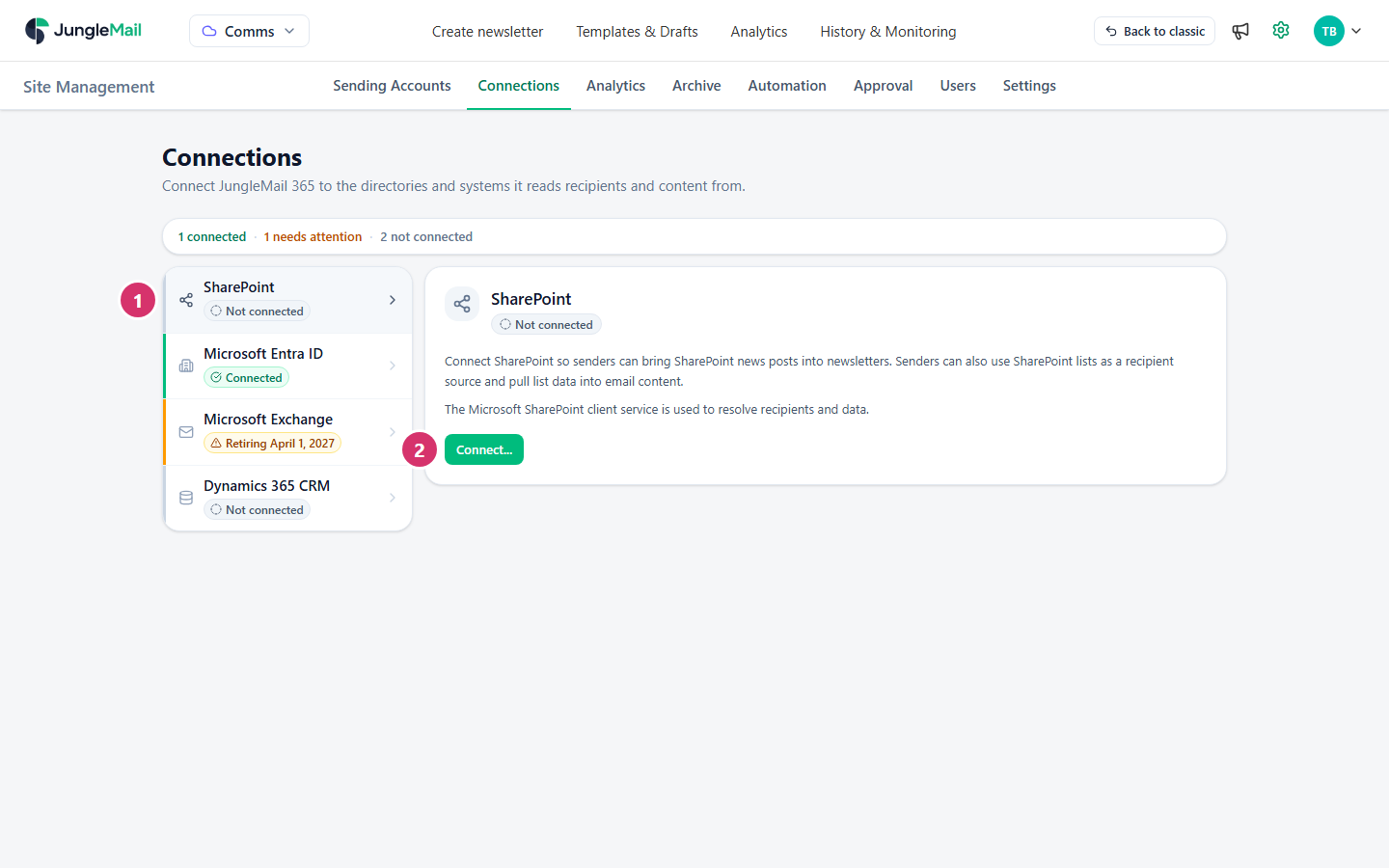
Section titled “Set up the connection”In JungleMail, go to Settings > Connections.
-
Select SharePoint.
-
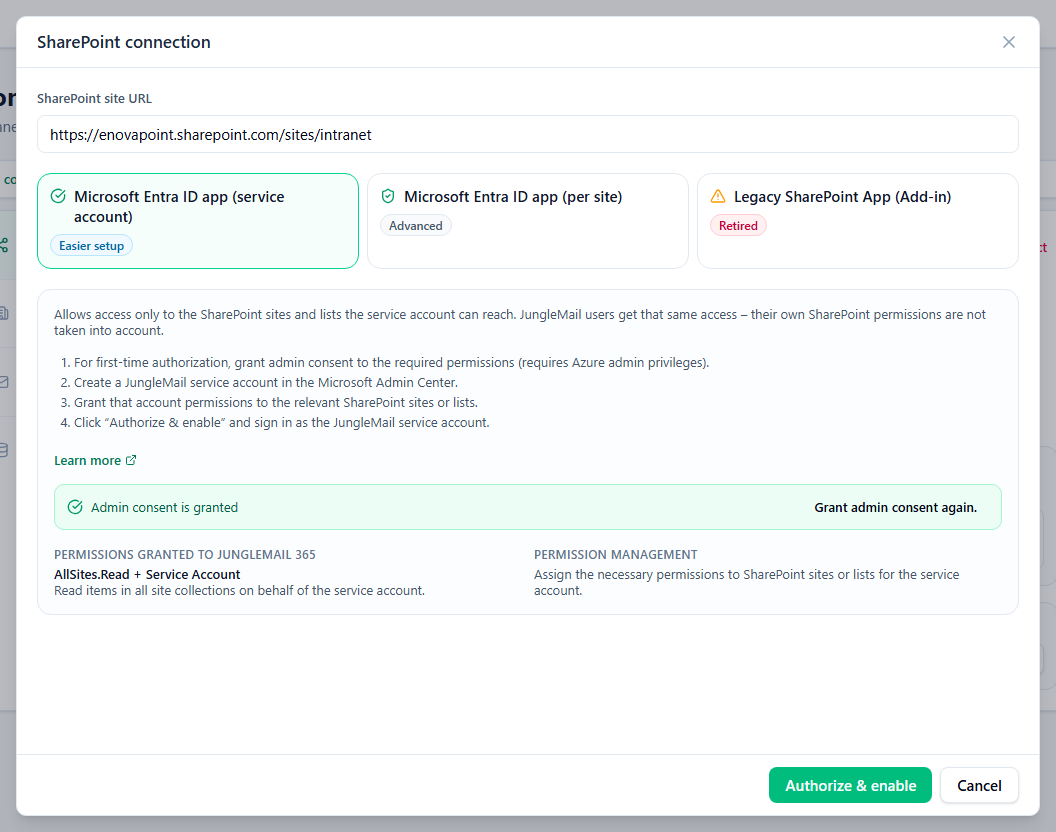
Select Connect…. The SharePoint connection dialog opens.
-
In SharePoint site URL, enter a site the service account can open, for example
https://enovapoint.sharepoint.com/sites/intranet. -
Select Microsoft Entra ID app (service account).
-
If the dialog says Admin consent is required for the app permissions on first use., select Grant Admin Consent and accept in Microsoft’s window as an administrator. The dialog then says Admin consent is granted.
-
Select Authorize & enable. In Microsoft’s window, sign in as the service account, not as yourself (choose Use another account if Microsoft offers yours), and accept. JungleMail says SharePoint connection saved., and Connects as shows Microsoft Entra ID app (service account: …) with the account’s name.
-
To check the connection, enter a site or list URL under Test connection and select Test connection.
If an administrator resets the account’s password, its password expires, its sessions are revoked or its sign-in blocked, or a sign-in policy, such as a Conditional Access sign-in frequency or a multifactor authentication requirement, asks it to sign in again, the connection can stop working until someone authorizes it again with Change. Archive lists and subscriber lists are authorized separately, once the connection works (Archive newsletters to SharePoint).
- Protect the password instead of rotating it. An administrator’s password reset cancels the authorization JungleMail holds (Refresh tokens in the Microsoft identity platform). Microsoft recommends that passwords of cloud-only accounts never expire (Password policy recommendations), so if yours expire, set this account’s password to never expire (Self-service password reset policies), and give it a long, unique password: Microsoft recommends at least 14 characters.
- Check which sign-in policies apply to the account. A Conditional Access policy that asks for a new sign-in or for multifactor authentication can stop the connection each time it applies. Decide with your security team whether the account is excluded, or who signs in with Change when the policy asks.
- Tell whoever resets passwords about the account. If its password must be reset, someone signs in as the account with Change right afterward, so the connection doesn’t stay down. Keep its sign-in details where the administrators who may need to do that can reach them.
- Test with the list editors will use, not only the site. A list with its own permissions can be closed to the
account even when the site is open to it. At EnovaPoint, test the Employee Directory list, not only
https://enovapoint.sharepoint.com/sites/intranet. - Check the account’s access when a site is added. When editors start drawing on a new site, give the account access there first; until then, JungleMail can’t read that site’s lists for anyone.