

Find your way around
Everything in JungleMail 365 starts from the top menu, which stays at the top of every page. What it offers depends on your role: a site administrator sees more settings than an editor (Permissions).
The top menu
Section titled “The top menu”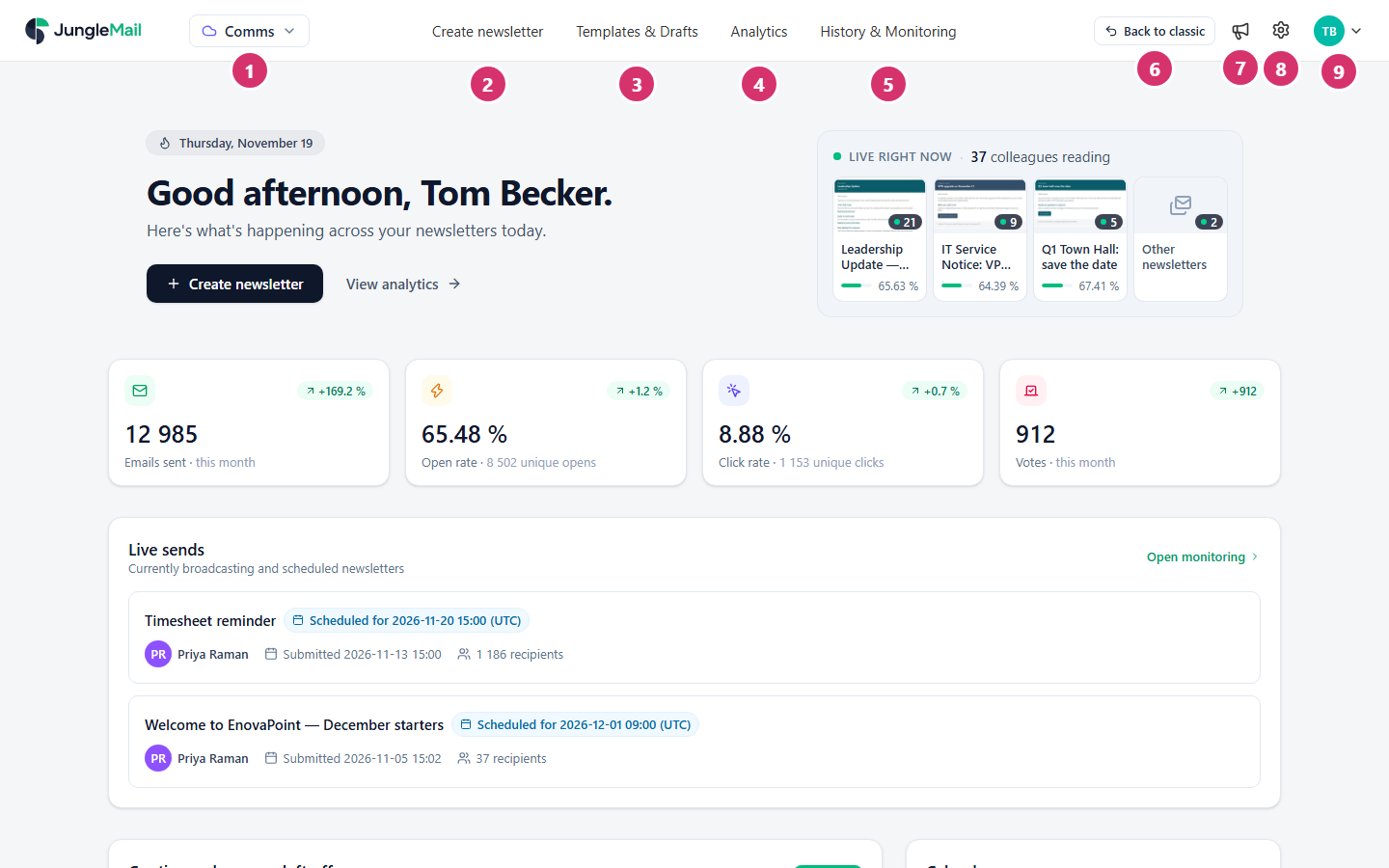
- The site switcher shows the JungleMail site you are working in. Select it to switch to another site (see below).
- Create newsletter starts a new newsletter. While you work on one, it reads Newsletter in progress and takes you back to it (Create a newsletter).
- Templates & Drafts: the site’s templates, sent newsletters, your drafts and the Company Gallery (Templates).
- Analytics: the results of your newsletters (Analytics and reports).
- History & Monitoring: newsletters being sent, scheduled and sent before (Monitor, pause and stop a newsletter).
- Back to classic opens the classic JungleMail interface.
- Notifications and announcements, the megaphone: What’s new, the latest product updates.
- Settings, the cog: Site Management, the settings of the site you are in; Global Management, the organization’s settings, for global administrators; and Help & Resources, with Support, Documentation and About.
- Your initials open the account menu: your organization’s usage, the Account pages, Send feedback and Sign Out.
The JungleMail logo, at the far left, takes you back to the dashboard.
The dashboard
Section titled “The dashboard”The dashboard is the page JungleMail opens at (The dashboard). From the top down:
- Create newsletter and View analytics;
- Live right now: how many recipients are reading your newsletters at the moment;
- this month’s results for the site: emails sent, open rate, click rate and survey votes, compared with the same days last month;
- Live sends: newsletters being sent now and scheduled ones, with Open monitoring;
- Continue where you left off: your drafts;
- Recent newsletters: the six latest newsletters of the last 30 days and their open and click rates;
- Calendar: the newsletters sent and planned this month.
Switch to another JungleMail site
Section titled “Switch to another JungleMail site”If you belong to several JungleMail sites, select the site switcher and choose the site. Each site has its own newsletters, templates, sending accounts and results.
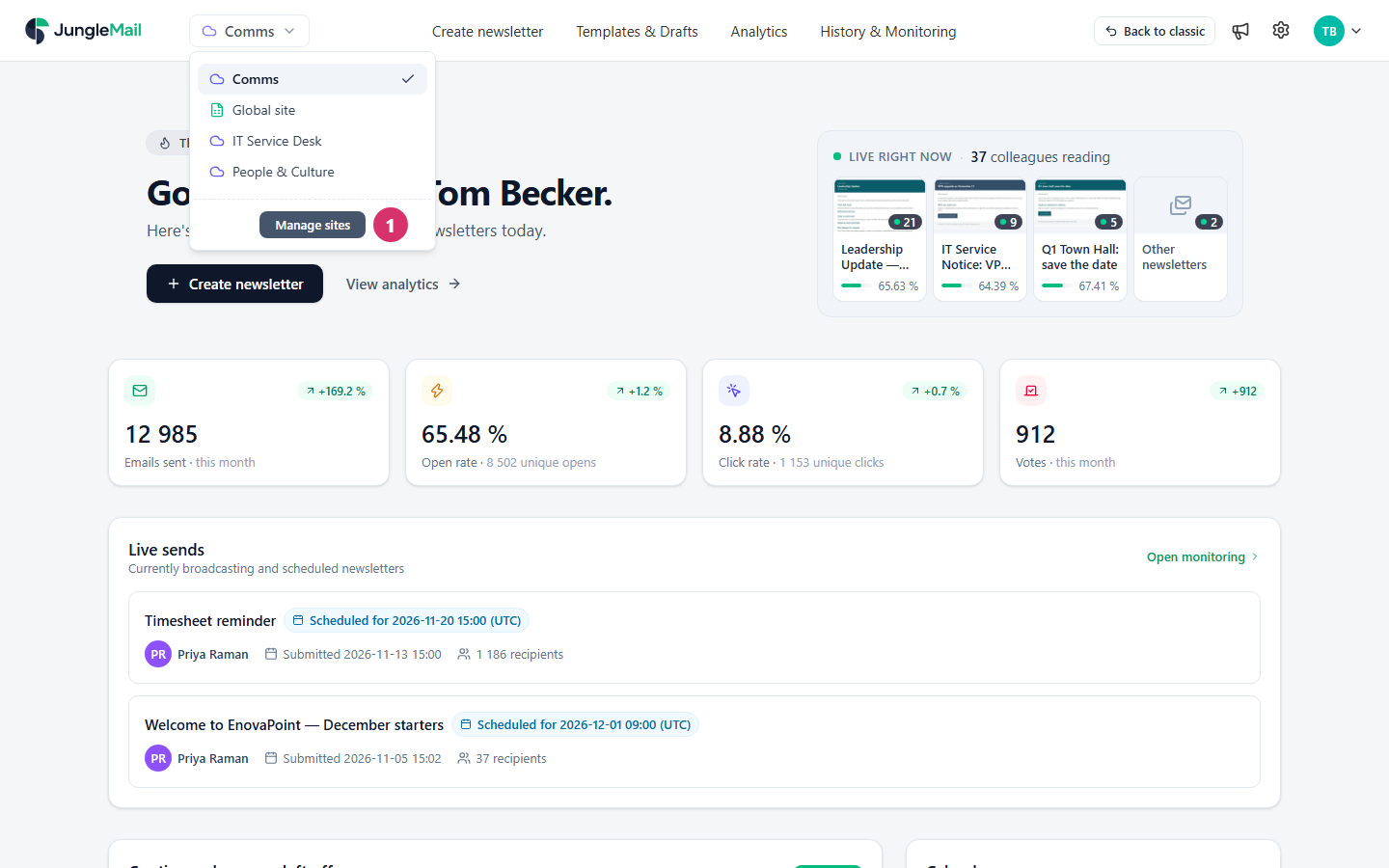
Global administrators also see Manage sites (1), where they create and manage the sites (Create and manage JungleMail sites).
- Check the site switcher before you start. A newsletter, a template and a sending account belong to the site they were made in. A People & Culture newsletter started in Comms goes out with Comms’ sending accounts, and its results count in Comms.
- Look at the dashboard after you send or schedule. Live sends shows what is going out or waiting for its time, and the Calendar marks newsletters that failed or were skipped (The dashboard).
- If a page you need is missing, ask for a role that has it. The menus show what your role on the site allows; a site administrator can give you another role (Manage site users).