

Sign in to JungleMail
You sign in to JungleMail 365 with your Microsoft 365 work account; there is no separate JungleMail password.
Sign in
Section titled “Sign in”-
Open JungleMail at your organization’s address, which depends on the cloud its data is hosted in:
https://app.junglemail365.comfor the US cloud, and an address of its own for each of the others, such ashttps://app-eu.junglemail365.comfor the EU cloud (Clouds and app addresses). -
Select Sign in with Microsoft.
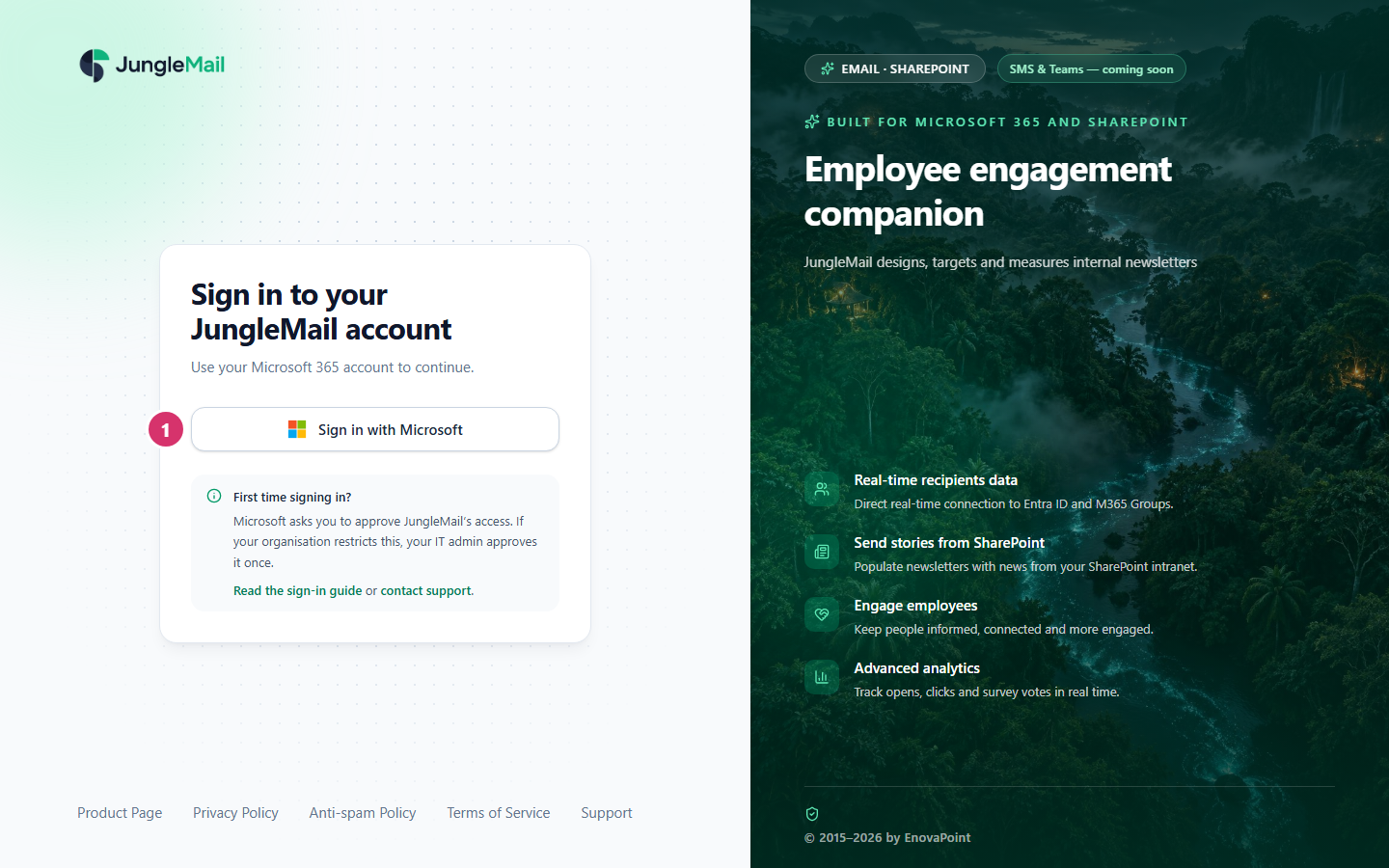
-
Sign in with your Microsoft 365 account, as you would in Outlook.
-
The first time, Microsoft may ask you to approve JungleMail’s access to your account: to sign you in, read your profile and keep that access. If it does, select Accept. If it also offers Consent on behalf of your organization, as it does to administrators, select that first, so that nobody else in your organization is asked (Grant consent to JungleMail).
JungleMail opens at the dashboard of your JungleMail site. Bookmark the address, or pin it in your browser.
If Microsoft asks for approval
Section titled “If Microsoft asks for approval”Some organizations let only their Microsoft 365 administrators approve apps. Then Microsoft shows Approval required instead of the permissions. Write why you need JungleMail, such as the team whose newsletters you send, and select Request approval; your administrator gets the request by email. Once they approve, you and everyone else in your organization can sign in. If Microsoft shows Need admin approval instead, your organization doesn’t take such requests: ask your Microsoft 365 administrator directly. Administrators can approve for everyone in advance (Grant consent to JungleMail).
The first time for your organization
Section titled “The first time for your organization”The first person from an organization to start JungleMail chooses where its data is hosted. At
https://app.junglemail365.com/location, select the datacenter: US East, West Europe, UK South, Australia Southeast,
Canada Central or UAE North. Choose the location where your organization wants its JungleMail data stored, and agree
on it first with whoever decides where your organization keeps its data, such as your IT team.
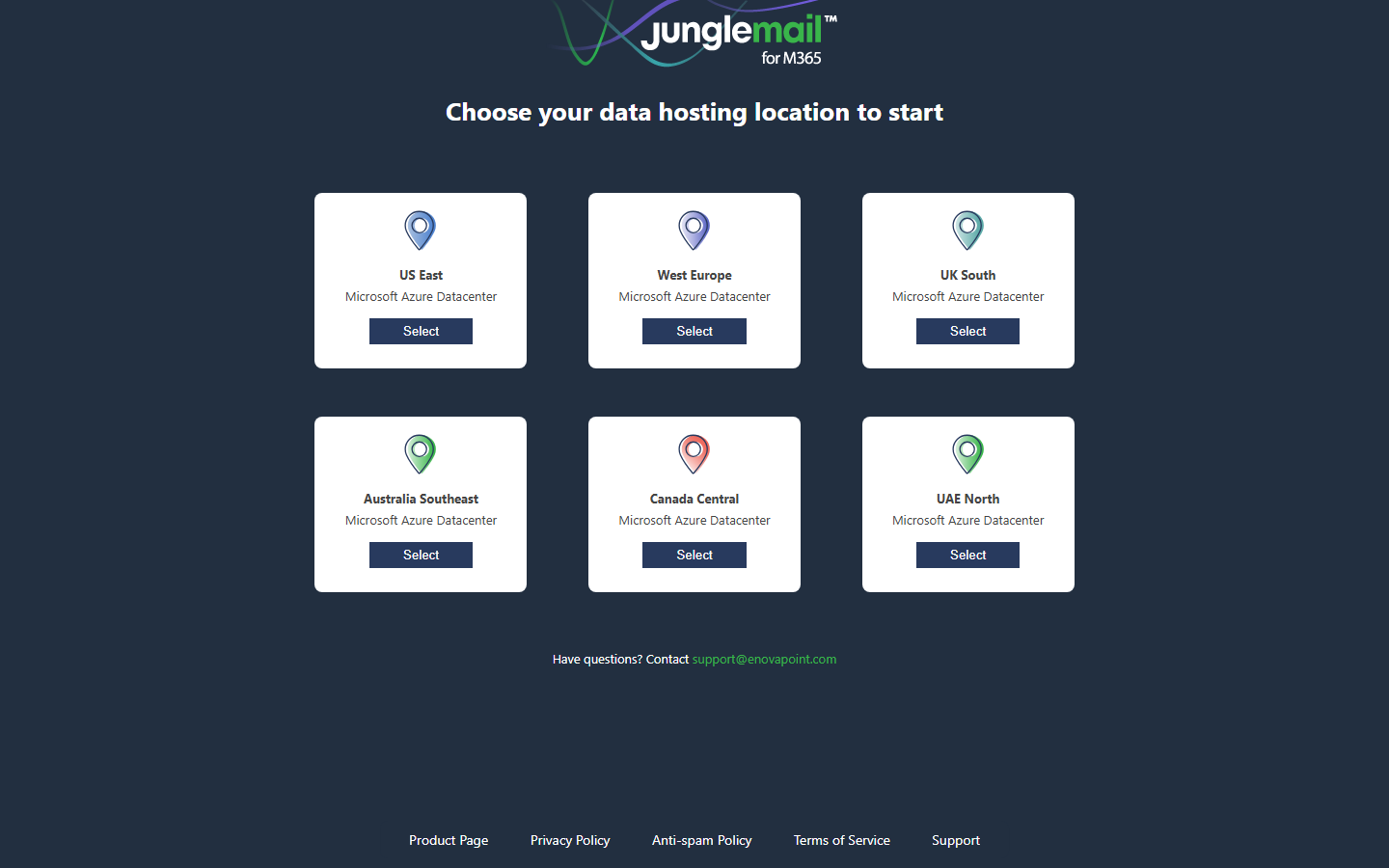
Then sign in and fill in the trial form. Whoever fills it in becomes your organization’s first global administrator, so it should be the person who will look after JungleMail. JungleMail opens once EnovaPoint has approved the trial (Start a free trial).
If you can’t get in
Section titled “If you can’t get in”If JungleMail says you have no access, you aren’t a user of a JungleMail site yet: ask a site administrator to add you (“Access denied” in JungleMail).
Sign out
Section titled “Sign out”Select your initials at the top right, then Sign Out.
- Sign in with the address you were invited with, within 14 days. JungleMail gives access to that account only, and the invitation expires after 14 days; an administrator can then send it again (Manage site users).
- Allow pop-ups for JungleMail. Adding a Microsoft 365 sending account, connecting a service and renewing your sign-in open Microsoft’s sign-in in a new window, which a pop-up blocker stops (Supported browsers).
- When JungleMail asks you to Extend session, select it. Your sign-in has expired: sign in again in the window that opens, and JungleMail retries what you were doing (“Access denied” in JungleMail).